
Keeping your home network secure is something that I pay close attention to these days. With more devices connected than ever, such as smart TVs, tablets, phones, gaming consoles, and even smart fridges, there are simply a lot more ways for hackers to break in or for your private information to leak out. From my experience, it’s absolutely worth taking a few practical steps to lock things down and protect your stuff. I’m going to walk you through what I see as the best strategies to get your home network as secured as possible, even if you’re not an IT expert.
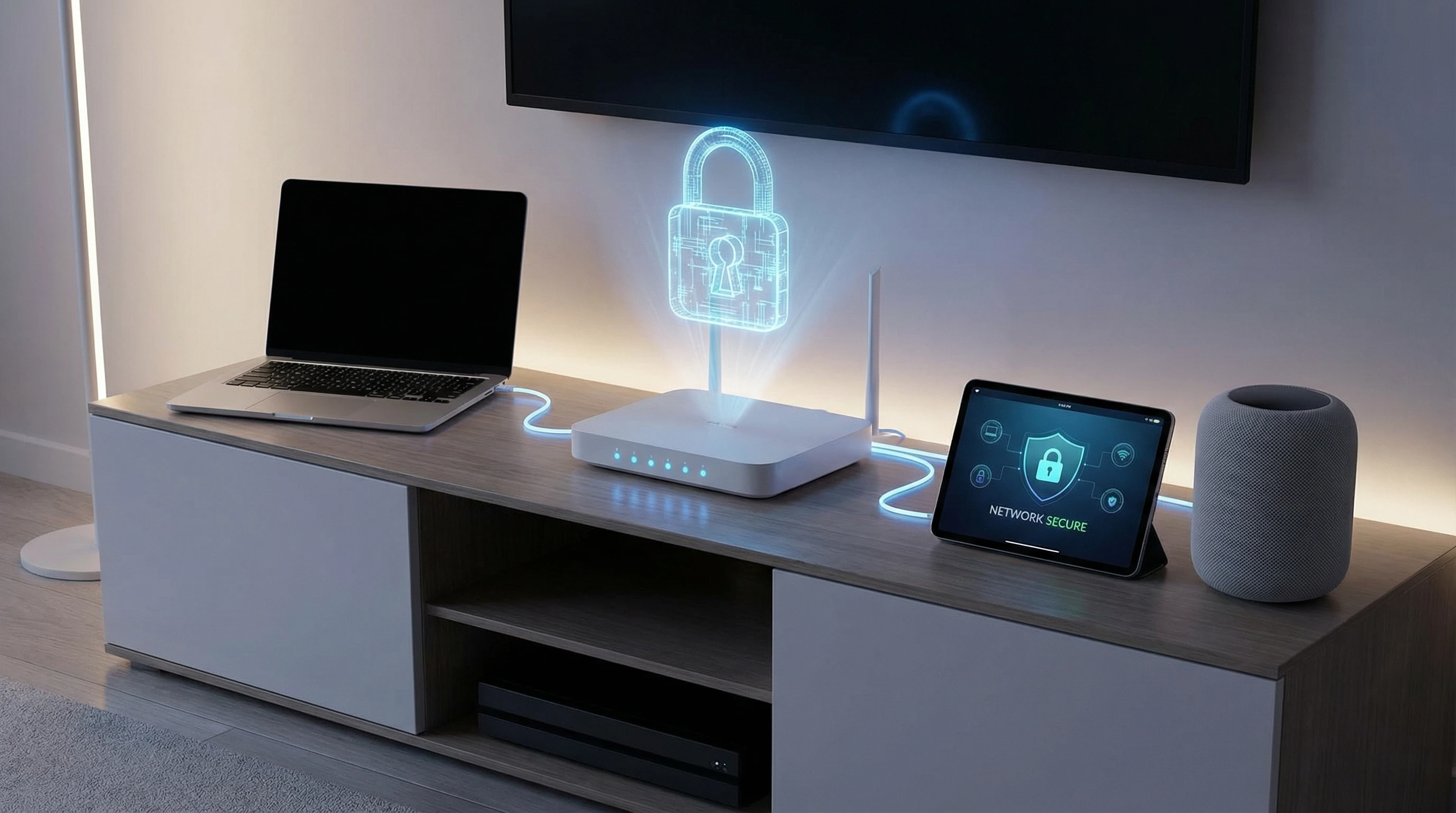
Why Securing Your Home Network Matters
Securing your home network is very important if you want to keep your personal data, smart home devices, and devices used for work safe from intruders. Home networks aren’t just for web browsing anymore. They control thermostats, cameras, lights, and even door locks in many homes. Without proper security, someone could snoop on your internet traffic, steal your data or passwords, or even hijack your smart devices.
With cyberattacks and online scams rising every year, hackers don’t just go after big corporations. Home Wi-Fi networks are becoming bigger targets because many of us leave them using the factory settings, which are often pretty easy to guess. Since I started keeping an eye out for this stuff at home, I’ve noticed how just a handful of changes make a surprisingly big difference in peace of mind.
Basic Home Network Security Tips for Everyone
There are a few easy things almost anyone can do to instantly make their home Wi-Fi much tougher to break into. Even if you’re not techy, these steps are straightforward and worth checking off your list.
- Change Default Passwords: Always update the default login details for your Wi-Fi router and any network-connected gadgets. Factory passwords are usually public knowledge and much too simple.
- Use Strong Wi-Fi Encryption (WPA3 or WPA2): Make sure your Wi-Fi security is set to at least WPA2, ideally WPA3 if your router supports it. Weak options like WEP can be cracked in minutes.
- Give Your Network a Unique Name (SSID): Use something that doesn’t give away your location or identity; don’t call it “Smith Family WiFi” or use your street address.
- Keep Firmware Up To Date: Routers and smart devices get security fixes just like computers do. Regularly check for router and device firmware updates, and install them promptly.
- Turn Off Remote Management: Most people don’t need to manage their router from outside their home, so it’s safer to disable this feature unless you specifically need it.
Advanced Steps To Lock Down Your Network
If you’re comfortable with your router’s settings and want to take up a notch your home network security, here are some extra things I do myself and recommend:
- Create a Guest Network: Set up a separate Wi-Fi network just for guests. This way, friends or visitors don’t connect to your primary devices. Most routers have a guest network feature built in.
- Disable Unused Features: If your router has features you aren’t using, such as WPS, Universal Plug and Play, or file sharing, it’s safer to switch those off.
- Limit DHCP Range: Restrict the pool of IP addresses your router hands out, so only a set number of devices can ever connect at once.
- MAC Address Filtering: You can set your router to only allow devices with specific unique IDs (MAC addresses) on your network. While this isn’t an unbreakable defense, it adds another small hurdle for intruders.
- Monitor Connected Devices: Every now and then, log into your router and double-check which gadgets are connected. If you see any you don’t recognize, that’s a sign you may need to make changes.
What To Think About Before Making Changes
Some decisions can impact your convenience or device performance, so it’s worth considering these before tweaking all your settings.
- Device Compatibility: Not every smart device works well with the tightest Wi-Fi security settings. For example, some older smart plugs or printers only support WPA2, not WPA3. Make sure your gadgets will work before cranking up the encryption.
- Guest Needs: Friends or family might want Wi-Fi for streaming, calls, or IoT gadgets when they visit. Make your guest network strong, but also user friendly enough for them to use; don’t share your main Wi-Fi password.
- Router Features: Advanced settings, such as VPN support or traffic logging, can give a boost to security but may be too complex for beginners. Check your router manual or manufacturer website before testing out anything new.
- Troubleshooting: Changing even a simple thing like the Wi-Fi SSID or password means you’ll have to reconnect all your devices. I always list out my key devices (laptop, TV, thermostat, etc.) beforehand so I don’t forget any.
Keeping Firmware and Software Updated
It’s easy to forget about firmware updates for routers and connected home gadgets, but they’re critical for patching security holes. A quick check every couple of months can help you avoid bugs and backdoors that hackers love to exploit. If your router can check for updates automatically, turn that on; if not, put a reminder in your phone calendar to check manually.
Passwords and Network Access
One thing that really matters is having a rock solid password for both your Wi-Fi and the router’s admin panel. Here’s my typical approach:
- Use a passphrase that mixes upper- and lowercase letters, numbers, and symbols—ideally at least 12 characters long.
- Avoid anything obvious (like birthdays, pet names, or “password123”).
- Write down your network name and password in a safe place, so you don’t forget. This is especially useful when you need to reconnect all your smart devices.
Using Network Security Tools and Gadgets
If you want even tighter security, extra tools are out there, but you don’t need to go overboard. Here are a few options that can help add more protection:
- Router Security Apps: Some routers have mobile apps (like ASUS Router or Netgear Nighthawk) that make it easy to manage security settings from your phone.
- Firewall Gadgets: If you work from home or have sensitive info, consider a dedicated firewall box (like Firewalla or Cujo) between your modem and router for extra protection.
- Network Scanners: Apps such as Fing (for phones) or GlassWire (for PCs) scan your network for unknown connections and help monitor traffic.
You don’t need all of these, but selecting the tools that suit your comfort level and needs can fill in the gaps. For more info, check out reputable cybersecurity guides at Consumer Reports or CISA (Cybersecurity & Infrastructure Security Agency).
Real-World Scenarios and How I Handle Them
Here are a few times having a secure home network paid off for me:
- When a friend visited and wanted to connect their old laptop, I directed them to my guest Wi-Fi, so my main gadgets didn’t get exposed to anything risky.
- A smart plug I bought on sale needed an app update after a security issue popped up. Because my router automatically blocks strange outgoing traffic, I got an alert and updated it right away. If I hadn’t, someone could’ve used it as a weak point.
- After checking my connected devices list, I spotted an extra phone trying to connect. Turned out it was a neighbor’s phone that had guessed my old, simple password. Changing to a much stronger password fixed it for good.
Staying a bit sharp means security doesn’t have to be stressful or overly complicated. Adding simple, small layers gives you way more protection.
Frequently Asked Questions
Here are a few things people often ask about keeping home Wi-Fi secure:
Q: Is changing my Wi-Fi password enough by itself?
A: It helps a lot, but you’ll get the most benefit by combining it with steps like updating firmware and setting tough router admin passwords.
Q: Do smart home gadgets make my network less secure?
A: Sometimes, especially if you use older or super cheap devices with weak security. Keeping everything up to date and using a guest network for IoT devices helps a lot.
Q: What’s a quick way to know if someone’s using my Wi-Fi without permission?
A: Logging into your router and checking connected devices is the best way. Do this every so often and watch for anything you can’t spot as your own device.
Getting Started With Home Network Security
I find that making a few adjustments, such as changing passwords, keeping software updated, and checking who is connected, makes for a surprisingly strong first defense. Once you get comfortable with the basics, stepping up with some of the extra strategies above can lock things down even tighter. It’s about building good habits for better digital safety at home, and anyone can do it, even without a tech background.
Security is ongoing, but you don’t have to do everything at once. Tackle each piece step by step, and before you know it, you’ll have a home network that’s far harder to break into. I hope these tips help you feel much more confident about staying safe online. Building a digital safe haven at home is a process, but every bit you do will make a real difference for you and your family.